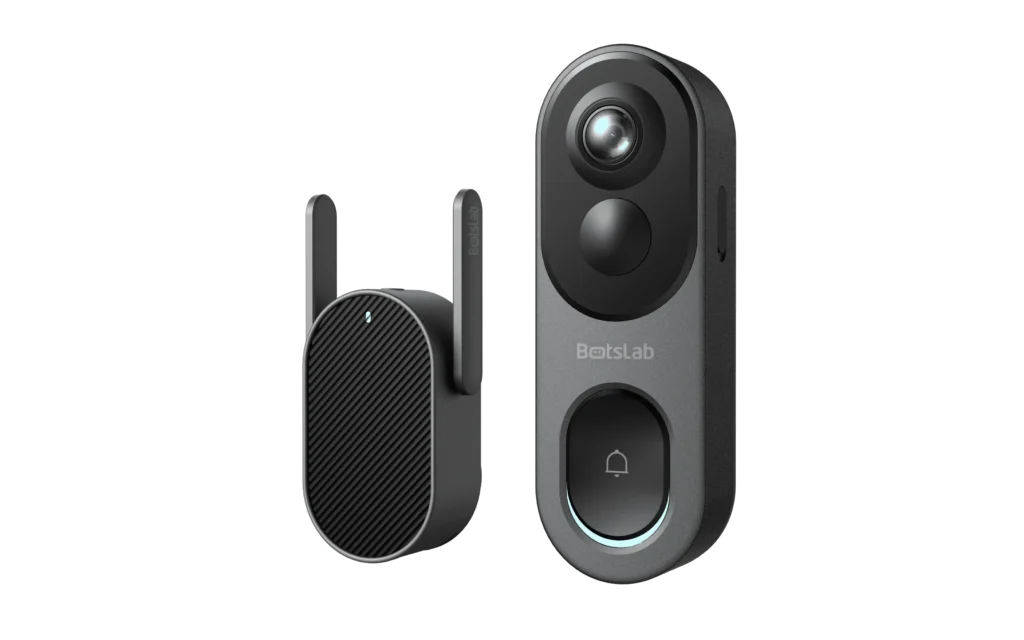


App Software Download:
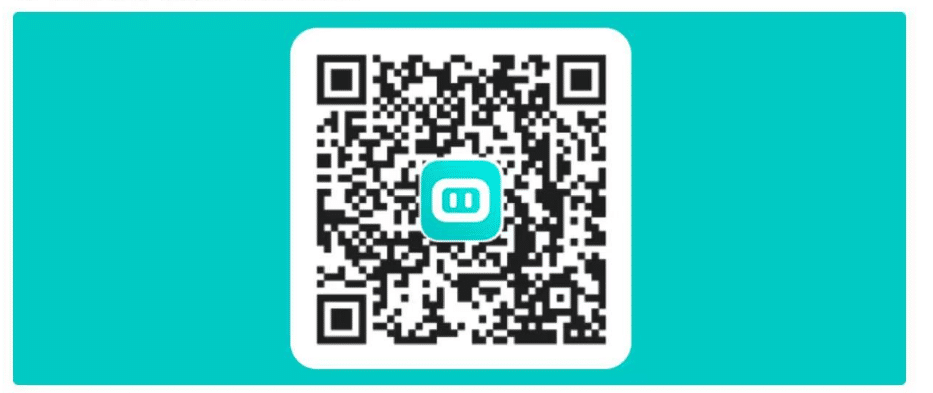
For Android users, head over to the Google Play Store and search for “Botslab.” Tap the install button, and you’re good to go.
If you’re using an iPhone or iPad, open the Apple App Store, look up “Botslab,” and hit the download button.
With just a few taps, the app will be ready to use, providing seamless access to all Botslab features right from your device.
Network Connections:
To connect your Botslab product to WiFi using the Botslab app, start by ensuring your device is powered on and in pairing mode. Open the Botslab app on your smartphone and log in to your account. Navigate to the “Add Device” section and select your Botslab product from the list. Follow the on-screen instructions to enter your WiFi network name (SSID) and password. The app will then attempt to connect your device to the WiFi network. Once the connection is successful, you will receive a confirmation message, and your device will be ready for use.
Add multiple Botslab devices from the App.
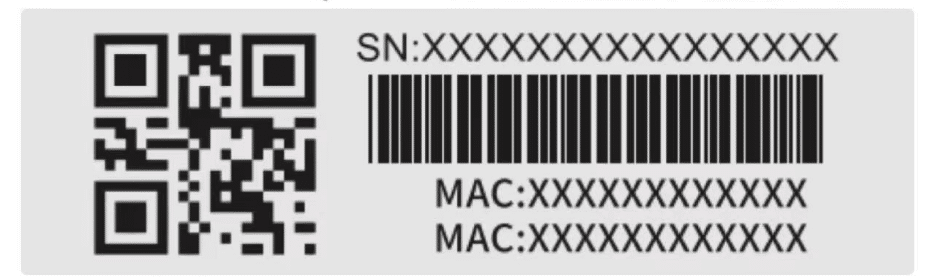
a: Scan the barcode/OR code on the device to add the device.
b: Scanning the OR code-shared by family members allows you to add the shared device.
Botslab Cloud Services
Botslab Cloud is a cloud-based video storage service offered by BOTSLAB INC. for certain smart video cameras that are compatible with the Botslab App. Botslab Cloud encompasses a range of security monitoring and cloud video storage features based on technologies such as moving object detection (MOD), face and human detection, and facial recognition.
Please visit the here for more information about Botslab Cloud Services.
Troubleshooting:
What should I do if the live view fails to load or cannot be viewed?
Failures of Low-Power Doorbells or Constant-Power Cameras
- Restart your router and switch networks on both the camera and your mobile device to see if the issue is resolved.
- Disconnect the camera from power and then reconnect it.
- Remove the card and try accessing the video feed again. Sometimes, the issue could be due to a faulty memory card.
- Ensure that both the app and the firmware are updated to the latest versions.
- Unbind and then rebind the camera to your app.
- If the problem persists, take note of any error messages(such as “Establishing a secure channel” or “Preparing to play”), list the troubleshooting steps you’ve tried, and contact us.
Solutions for Real-Time Streaming Failures of 4G Data Card Devices:
Check whether your SlM card’s data plan has expired. The app should display a popup notification about this expiration and provide a direct link to renew your data plan.
Verify if the device can connect to the network properly and if the indicator lights operate properly:
If the lights are off:
- Charge the device for 1 hour and adjust the solar panel’s orientation and angle as guided by the Solar Panel Adjustment feature on the device settings page. After charging, check if the device is online in the App. If it’s still offline. Contact us for support.
If the lights are on:
- Blue Light Constant: This indicates that the device is online.
- Red Light Constant: This indicates a fault with the device, please contact us.
- If the device still cannot stream, try re-networking. If the re-networking fails. Please contact your SlM card provider.
- If you are still unable to stream after following the above steps, please send feedback. Uploads, and provide the time when the issue occurred. Contact us for support.